
How to Check the SSD Health Before It’s Too Late (And Save Your Data)
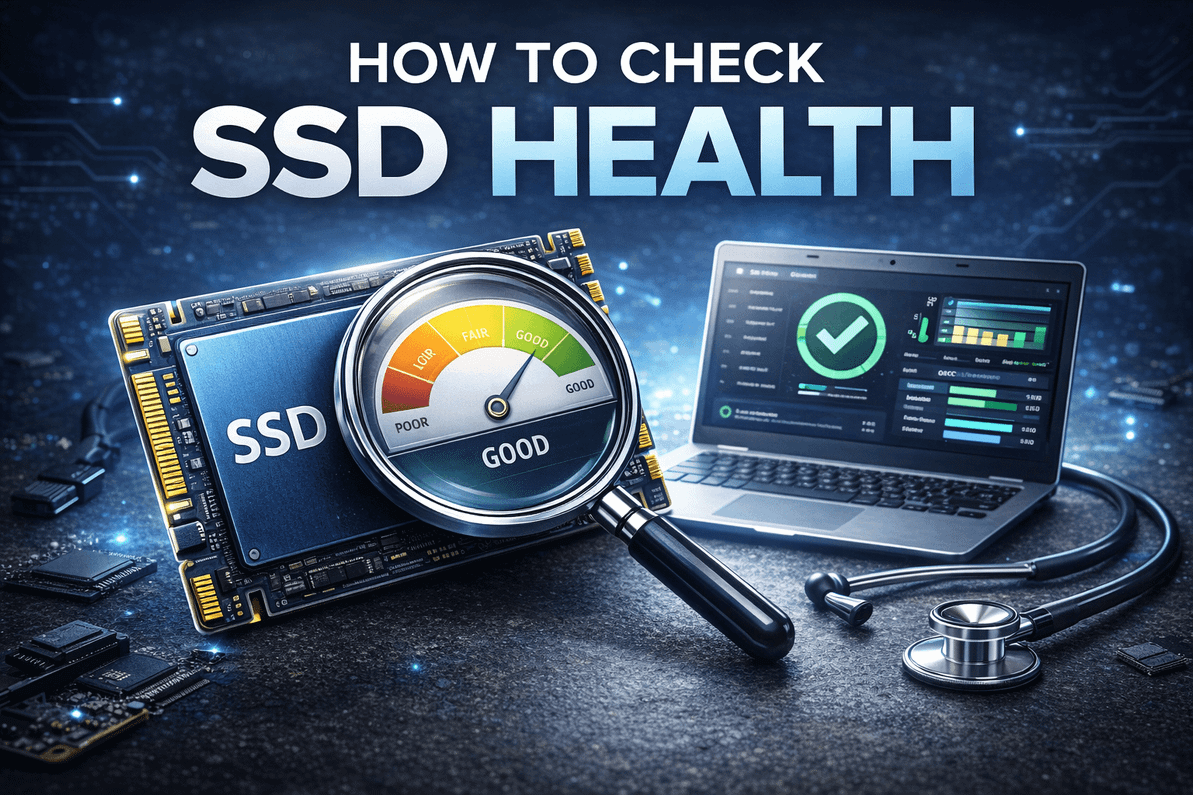
Table of Contents
- The Real Meaning of SSD “Health” (What You’re Actually Measuring)
- A Quick Story: The “It Was Fine Yesterday” SSD
- The Fastest Way to Check SSD Health (Windows + Mac + Linux)
- The SSD Health Numbers That Matter (And What “Bad” Looks Like)
- The “Do This Now” SSD Health Checklist
- Why SSDs Get “Slow” Even When Health Looks Fine
- Your Next Steps: A Simple SSD Health Guide You Can Follow Today
- Need a Reliable Replacement SSD or NVMe? Connect With Memox
- FAQs
You know that tiny moment of panic when your PC freezes… then unfreezes… then freezes again—and you suddenly remember everything you care about is sitting on one drive? That’s often the first hint an SSD is trying to tell you something.
Here’s the good news: you don’t need to be a technician to spot early warning signs. This guide will show you how to check the SSD health properly, what the numbers actually mean, and what to do next—so you can protect your files (and your sanity).
Quick question for you before we start: if your SSD failed tonight, would you be annoyed… or devastated?
The Real Meaning of SSD “Health” (What You’re Actually Measuring)
When people search how to check the SSD health, they usually mean one of these things:
-
Is my SSD about to fail?
-
How much life is left?
-
Is it safe to keep using?
-
Why is it slow lately?
SSD health is mostly about wear and reliability indicators. Unlike old hard drives with spinning parts, SSDs wear out because their flash memory cells can only be written to a certain number of times. Your computer can read those internal indicators via SMART data (Self-Monitoring, Analysis and Reporting Technology).
The key idea: you’re checking the SSD’s internal report card—and it’s often surprisingly honest.
A Quick Story: The “It Was Fine Yesterday” SSD
A customer once told a classic line: “My SSD was fine yesterday.”
They’d been editing photos, downloading games, doing normal work. Then one morning: constant crashing, random file errors, Windows taking forever to boot.
The SSD didn’t instantly “die”—it was failing quietly for weeks. If they had checked SSD health earlier, they would’ve seen warning signs like:
-
High reallocated blocks (or NAND issues)
-
Rising CRC errors
-
A low percentage remaining
…and they could have backed up and replaced it calmly.
That’s why learning how to check the SSD health isn’t “techy”—it’s practical.
The Fastest Way to Check SSD Health (Windows + Mac + Linux)
Below is a simple “pick your system” guide. Don’t worry, I’ll also explain what the key results mean.
Windows Method 1: Use a Trusted SSD Health Tool (Easiest)
Most people use one of these:
-
CrystalDiskInfo (great overview, shows health %, temperature, SMART)
-
Manufacturer tools (best accuracy for that brand):
-
Samsung Magician (Samsung)
-
Crucial Storage Executive (Crucial/Micron)
-
WD Dashboard (Western Digital)
-
Kingston SSD Manager (Kingston)
-
How to do it:
-
Install the tool
-
Open it and select your SSD
-
Look for:
-
Health/Remaining life
-
Total writes (TBW)
-
Temperature
-
SMART warnings/errors
-
Windows Method 2: Quick Built-In Check (Basic)
You can check basic drive status using PowerShell:
-
Search PowerShell → Run as Administrator
-
Use a drive status command (tools vary by Windows version).
This won’t show deep health like SMART wear level, but it can flag obvious issues.
macOS: Check SSD Health (Limited Built-In, Better With Tools)
macOS doesn’t always show full SMART data for every external drive.
Options:
-
Disk Utility (basic checks + First Aid)
-
Third-party apps like DriveDx (more detailed SMART interpretation)
How:
-
Open Disk Utility → select the drive
-
Run First Aid
-
For deeper health metrics, use DriveDx to view SMART attributes and remaining life.
Linux: SMART Check (Most Detailed)
Linux users often rely on smartctl (smartmontools).
Typical flow:
-
Install smartmontools
-
Run a SMART report on the SSD
-
Review wear indicators, errors, and temperature
Linux gives you excellent raw data—but you need to know which attributes matter (we’ll cover that next).
The SSD Health Numbers That Matter (And What “Bad” Looks Like)
Here’s the part most guides skip: not all SMART values are equally important. These are the ones you should pay attention to when learning how to check the SSD health.
1) Percentage Used / Remaining Life
Often shown as:
-
“Health: 98%”
-
“Percentage Used: 2%”
-
“Life Remaining: 98%”
What it means: how much of the SSD’s write endurance has been used.
When to worry:
-
Below 90%: keep an eye on it
-
Below 80%: start planning
-
Below 50%: consider replacement for important workloads
-
Very low + any errors: back up and replace ASAP
2) Total Host Writes (TBW)
This is how much data has been written to the SSD.
Why it matters: SSDs have endurance ratings (TBW). If you’re close to the limit, wear accelerates.
3) Media / NAND Errors
Shows internal memory issues.
When to worry: any number that increases over time.
4) Reallocated Sectors / Bad Blocks
On SSDs, it’s often reported differently than HDDs, but the concept is similar: the drive is swapping out weak areas.
When to worry: values that keep rising.
5) CRC Errors (Often Cable/Connection Related)
If you see CRC errors on SATA SSDs, it can be a bad cable, loose connection, or port issue—not the SSD itself.
Action: reseat cables, swap SATA cable, test again.
6) Temperature
SSDs run warm, especially NVMe drives.
When to worry:
-
Frequently above 70°C under normal load can reduce lifespan and cause throttling.
The “Do This Now” SSD Health Checklist
If you want a simple routine for how to check the SSD health, use this:
-
Check health % / percentage used
-
Note total writes (TBW)
-
Look for SMART warnings
-
Check temperature under normal use
-
Scan for errors (First Aid / SMART short test)
-
Run a speed check (optional): sudden drops can signal problems
-
Back up immediately if anything looks worse than last check
Pro tip: take a screenshot of your SMART screen once a month. Trends matter more than one reading.
Why SSDs Get “Slow” Even When Health Looks Fine
Here’s something that confuses people: you can check SSD health and see “Good”… but the drive still feels sluggish.
Common reasons:
-
Drive nearly full (SSDs need free space to stay fast)
-
Thermal throttling (NVMe drives overheating)
-
Background indexing or Windows updates
-
Old firmware (manufacturer tools can update it)
-
Failing OS or corrupted files
-
No TRIM / TRIM not running properly (rare on modern systems, but worth checking)
A healthy SSD can still perform badly if the environment around it is messy.
Your Next Steps: A Simple SSD Health Guide You Can Follow Today
If you only do three things after reading this, do these:
-
Install a health tool (brand tool or CrystalDiskInfo)
-
Take a baseline screenshot of SMART + health %
-
Set a monthly reminder to check again and compare
That’s the difference between “my drive died” and “I replaced it before it caused chaos.”
Need a Reliable Replacement SSD or NVMe? Connect With Memox
If your checks show declining health—or you just want a faster, more reliable upgrade—Memox has you covered with SSDs, NVMe drives, PC parts, and upgrade advice that actually makes sense.
Visit Memox.co.uk to find the right SSD for your build, and if you’re not sure what’s compatible, message us—we’ll help you choose the best option for performance, value, and longevity.
FAQs
More from MemoX
View all articles-
 3000VA UPS
VIDA Armour 3000VA UPS Review: Is It Worth It for Gaming PCs, NAS & Servers?
3rd Oct 2026 -
 Announcements
ASRock A520M-HVS: The Budget AM4 Motherboard Still Worth Buying for Ryzen Builds
1st Oct 2026 -

-
 Storage & Memory Guides
How to Check the SSD Health Before It’s Too Late (And Save Your Data)
1st Oct 2026 -
 Announcements
Why the WRX90 WS EVO Is Trending for AI + Multi-GPU Workstations (And What to Know Before You Buy)
1st Oct 2026 -
 Announcements
The Best Micro SD Express Cards for Nintendo Switch 2: Speed Now, Future-Proofed For Tomorrow
1st Oct 2026