
TOSHIBA
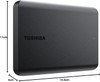
Toshiba Canvio Basics 2TB Portable External Hard Drive – USB 3.2, Black
- SKU:
- 360468
- UPC:
- 4260557512357
- MPN:
- HDTB520EK3AA
- Availability:
- Free Click & Collect in Peterborough. UK delivery also available


Description
Toshiba Canvio Basics 2TB Portable External Hard Drive – USB 3.2 Gen 1, Black
The Toshiba Canvio Basics 2TB Portable External Hard Drive is a compact, USB-powered storage solution designed for backing up documents, photos, videos, music and other personal or business files. With 2TB of storage capacity, a lightweight 2.5-inch portable design and SuperSpeed USB 3.2 Gen 1 connectivity, it provides a simple way to add extra storage to a compatible Windows PC or laptop.
The exact model is Toshiba HDTB520EK3AA, finished in matt black and weighing only approximately 149g. It measures just 78 × 109 × 14mm, making it easy to carry in a laptop bag, backpack or work case.
No external mains power adapter is required. The Canvio Basics receives power directly through its USB connection, so a single supplied USB Type-A to Micro-B cable handles both data transfer and electrical power.
The drive is pre-formatted using NTFS for Microsoft Windows and is designed for straightforward plug-and-play operation without requiring additional software installation. It can also be used with compatible Mac computers after reformatting to an appropriate macOS-supported file system.
With USB 2.0 backward compatibility, the drive can also connect to older computers with compatible USB ports, although transfer performance will be reduced when using USB 2.0.
Key Features of the Toshiba Canvio Basics 2TB
- 2TB portable storage capacity
- 2.5-inch external hard drive
- USB 3.2 Gen 1 interface
- USB 2.0 backward compatible
- Maximum USB interface rate of approximately 5.0Gbit/s
- USB bus powered – no external mains adapter required
- Maximum USB power requirement up to 900mA
- Pre-formatted NTFS for Windows
- Plug-and-play operation with compatible Windows PCs
- No additional software installation required
- Mac compatible after suitable reformatting
- USB Type-A to Micro-B cable included
- Compact 78 × 109 × 14mm dimensions
- Approximately 149g weight
- Matt black enclosure
- 2-year Toshiba warranty
2TB Portable Storage for Files, Photos and Videos
With a manufacturer-rated capacity of 2TB, the Toshiba Canvio Basics provides a substantial amount of portable storage without requiring a large desktop hard-drive enclosure.
It can be used to store a wide range of files including:
- Photos and image libraries
- HD and 4K video files
- Music collections
- Microsoft Office documents
- PDF documents
- Work and university files
- PC backup copies
- Downloaded files
- Archived projects
- Installation files and software archives
How Much Can You Store on 2TB?
The exact number of files depends on their size and format. As a general guide, 2TB provides enough space for very large photo collections, hundreds of hours of compressed video, extensive document archives or multiple PC backup sets.
Video files can vary enormously in size depending on resolution, frame rate, codec and bitrate, so there is no single number of videos or hours that will always fit on a 2TB drive.
Why Does Windows Show Less Than 2TB?
A new 2TB drive will normally appear to have less than exactly 2.00TB available inside Windows. This is normal and does not mean storage is missing.
Drive manufacturers calculate capacity using decimal units, where:
- 1TB = 1,000,000,000,000 bytes
Operating systems can calculate and display storage using a different binary measurement convention, and a small amount of capacity is also used by file-system structures and formatting.
As a result, a 2TB drive will typically show approximately 1.81TiB of raw binary-addressable capacity before accounting for normal formatting overhead.
USB 3.2 Gen 1 Connectivity
The Canvio Basics HDTB520EK3AA uses a USB 3.2 Gen 1 connection, providing a maximum interface signalling rate of approximately 5.0Gbit/s.
5Gbit/s Is the USB Interface Speed
It is important to understand that 5Gbit/s refers to the maximum theoretical speed of the USB interface rather than a guaranteed hard-drive read or write speed.
The Canvio Basics contains a mechanical hard disk, so actual file-transfer performance will be lower than the maximum USB interface capability.
Real-world transfer speed can vary according to:
- File size
- Number of files being transferred
- Computer performance
- USB controller performance
- Drive location and fragmentation
- Background applications
- File system
- USB cable and connection
Large Files vs Thousands of Small Files
Copying one large video file can often achieve better sustained performance than copying thousands of very small files.
This is because each small file requires additional file-system operations, which can reduce the average transfer rate.
USB 2.0 Backward Compatibility
The Toshiba Canvio Basics is backward compatible with USB 2.0, allowing it to connect to older compatible computers.
This can be useful when moving files between newer and older PCs.
USB 2.0 Will Be Slower
When connected to USB 2.0, the drive will operate within the lower performance limits of the USB 2.0 interface.
For the best available transfer performance, connect the drive directly to a USB 3.2 Gen 1, USB 3.1 Gen 1 or compatible USB 3.0 Type-A port.
Understanding USB 3.2 Gen 1, USB 3.1 Gen 1 and USB 3.0
The USB naming system has changed over time, which can make compatibility confusing.
The interface commonly referred to historically as USB 3.0 was subsequently renamed USB 3.1 Gen 1 and is now generally identified as USB 3.2 Gen 1.
All describe the same basic 5Gbit/s class of USB connectivity in this context.
USB Type-A to Micro-B Connection
The standard Canvio Basics HDTB520EK3AA uses a USB Micro-B SuperSpeed connection on the hard drive and includes a cable terminating in a conventional USB Type-A connector for the computer.
Included Cable
- Drive end: USB Micro-B
- Computer end: USB Type-A
- Interface: USB 3.2 Gen 1
This Is Not the USB-C Version
The HDTB520EK3AA supplied here is the standard USB Type-A Canvio Basics model and should not be confused with Toshiba's separate Canvio Basics USB-C range.
If your computer only provides USB-C ports, an appropriate compatible USB-C adapter or cable may be required. Check that any replacement cable or adapter supports USB data transfer rather than charging only.
USB Powered – No External Power Adapter Required
The Canvio Basics is powered directly from the host computer's USB port.
Toshiba specifies USB bus power with a maximum requirement of approximately 900mA.
One Cable for Power and Data
The supplied USB cable carries both:
- Electrical power to the hard drive
- Data between the drive and computer
This means there is no separate external mains adapter to carry when travelling.
Connect Directly to the Computer Where Possible
If a drive disconnects unexpectedly or does not start correctly through an unpowered USB hub, connect it directly to a compatible USB port on the computer.
Some hubs or adapters may not provide sufficient power for a portable mechanical hard drive.
Plug-and-Play Windows Storage
The Canvio Basics is supplied pre-formatted using NTFS for Microsoft Windows.
With a compatible Windows PC, users can normally connect the drive and begin copying files without installing additional Toshiba software.
Simple Drag-and-Drop File Storage
Once recognised by Windows, files can be copied using normal File Explorer operations:
- Connect the Canvio Basics to the computer.
- Wait for Windows to detect the drive.
- Open File Explorer.
- Select the Toshiba external drive.
- Drag and drop or copy and paste files to the drive.
Compatible with Windows 11
Toshiba's current Canvio Basics specification lists the drive as NTFS formatted for Microsoft Windows 11.
It requires an available USB 3.2 Gen 1 or USB 2.0 port.
Compatibility with older Windows versions can depend on the computer, operating-system support and USB hardware.
Using Toshiba Canvio Basics with a Mac
The drive can be used with compatible Mac computers, but Toshiba specifies that reformatting is required for macOS.
This is because the drive is supplied using the Windows-oriented NTFS file system.
Choosing a File System for Windows and Mac
If you intend to use the drive regularly with both Windows and macOS, exFAT is commonly used as a cross-platform file system because modern versions of both operating systems can read and write it.
If the drive will only be used with Mac computers, another macOS-supported file system may be more appropriate depending on your requirements.
Formatting Erases Existing Data
Reformatting a drive normally deletes the data stored on it.
Copy any important files elsewhere before formatting or changing the file system.
No Extra Software Required
The Canvio Basics is designed as Toshiba's straightforward portable-storage option.
It does not require proprietary backup software simply to copy and store files.
This can be useful for customers who prefer direct access to their files rather than managing storage through a dedicated application.
No Bundled Password or Backup Software
The Canvio Basics should not be confused with higher-tier Toshiba Canvio models that offer downloadable backup or security software.
Toshiba positions the Canvio Basics as a simple plug-and-play storage drive rather than a model centred around bundled encryption or automatic-backup applications.
Suitable for PC Backups
The Canvio Basics can be used as a destination for compatible backup software, Windows backup tools or manual file copies.
Common backup uses include:
- Documents
- Family photos
- Home videos
- Work projects
- University assignments
- Archived email files
- Local copies of cloud data
An External HDD Is Not a Backup by Itself
Simply moving your only copy of a file onto an external drive does not create a backup.
Important data should ideally exist in more than one location. For valuable files, consider keeping:
- The original copy on your computer
- A second copy on the Canvio Basics
- An additional copy on another drive or reputable cloud backup service
Suitable for Photo and Video Archives
With 2TB of storage capacity, the Canvio Basics is particularly useful for photographers, families and content creators who need additional space for archived media.
It can store:
- JPEG photo libraries
- RAW photography files
- Phone photo backups
- HD video
- 4K video files
- Exported video projects
For demanding real-time professional video editing, a faster external SSD may provide better performance. The Canvio Basics is particularly well suited to storage, backup and archive workloads.
Suitable for Students
The compact design makes the Canvio Basics practical for students who need additional storage for:
- Assignments
- Presentations
- Research documents
- Media projects
- Lecture recordings
- Course materials
At approximately 149g, it adds relatively little weight to a laptop bag.
Suitable for Home and Office Use
The 2TB Canvio Basics can also provide straightforward additional storage for home-office and business users.
Typical uses include:
- Document backup
- Project archives
- Transferring large files between computers
- Keeping offline copies of important information
- Expanding limited laptop storage
Compact 2.5-Inch Portable HDD
The Canvio Basics uses a compact portable 2.5-inch hard-drive format.
The 2TB model measures approximately:
- Width: 78mm
- Length: 109mm
- Height: 14mm
- Weight: approximately 149g
Easy to Carry
Its slim enclosure can fit easily into many laptop bags, backpacks and equipment cases, making it convenient for transferring files between home, work, university and other locations.
Matt Black Finish
The drive uses Toshiba's understated matt black enclosure.
The simple flat-top design is intended to work equally well beside a desktop computer or as part of a portable laptop setup.
Mechanical HDD vs External SSD
The Toshiba Canvio Basics is a mechanical external hard drive rather than a solid-state drive.
Advantages of a Portable HDD
- High storage capacity
- Good value per gigabyte
- Suitable for large backup archives
- Ideal for files that do not require SSD-level performance
Advantages of an External SSD
An external SSD may be preferable where you prioritise:
- Much higher file-transfer performance
- Greater resistance to movement and vibration
- Very fast application or project loading
- Smaller physical dimensions
The Canvio Basics is generally the better choice when large-capacity affordable storage is more important than maximum transfer speed.
Important Mechanical Hard Drive Care
Because the Canvio Basics contains moving mechanical components, it should be handled carefully while operating.
- Avoid dropping the drive
- Avoid strong shocks or vibration
- Do not move it unnecessarily while large files are being written
- Place it on a stable surface during use
- Keep liquids away from the drive and cable
- Do not block or damage the USB connector
Safely Disconnect the Drive
Do not unplug the Canvio Basics while files are actively being copied or written.
Where appropriate, use the operating system's Eject or Safely Remove Hardware function before disconnecting the USB cable.
This helps reduce the risk of interrupted writes and file-system corruption.
Can the Toshiba Canvio Basics Be Used with a TV?
Potentially, but compatibility depends on the television.
The TV must support:
- USB storage devices
- A suitable hard-drive capacity
- The drive's selected file system
- Sufficient USB power for the drive
Some televisions may require their own formatting procedure, particularly when the drive is used for recording TV programmes.
Check the television manufacturer's USB storage requirements before formatting the drive.
Can the Canvio Basics Be Used with a Games Console?
The drive may be usable with games consoles that support compatible USB external storage, but requirements vary between console models and software versions.
A console may need to reformat the drive before it can store games or media. Formatting for a console can erase existing files, so important data should be backed up first.
Always check the current storage requirements of the specific console before purchase.
Can It Be Used with a Router or NAS USB Port?
Potentially, if the router or NAS provides USB storage support and sufficient USB power.
Compatibility depends on:
- Supported file systems
- Maximum supported drive capacity
- USB port power
- Router or NAS firmware
Check the network-device manufacturer's storage compatibility information before relying on the drive for this purpose.
Who Is the Toshiba Canvio Basics 2TB Best For?
- Windows PC and laptop users needing more storage
- Students storing documents and media projects
- Home users backing up photos and videos
- Office users archiving work files
- Photographers storing image libraries
- Users transferring large collections of files between computers
- Customers wanting portable storage without an external power adapter
- Users looking for affordable storage per gigabyte
- Customers who prefer simple drag-and-drop operation
Who May Need a Different Storage Drive?
The Canvio Basics may not be the best choice for customers who require:
- External SSD-level transfer performance
- Native USB-C connectivity without an adapter
- Built-in hardware encryption
- Bundled password-protection software
- Bundled automatic backup software
- Extreme resistance to drops and vibration
- A permanently installed NAS-grade hard drive
- A drive designed specifically for continuous CCTV recording
Toshiba Canvio Basics vs Canvio Advance
The Canvio Basics is Toshiba's straightforward portable-storage option, designed around easy plug-and-play file storage.
Canvio Basics
- Simple portable storage
- USB 3.2 Gen 1
- USB bus powered
- Plug-and-play for Windows
- No additional software required for normal file storage
- 2-year warranty
Canvio Advance
Toshiba positions the Canvio Advance above the Basics range for users who want additional downloadable backup and security software features.
Choose Canvio Basics when simple portable storage is the priority.
How to Set Up the Toshiba Canvio Basics on Windows
- Remove the drive and USB cable from the packaging.
- Connect the Micro-B end of the cable to the Canvio Basics.
- Connect the USB Type-A end to a compatible USB port on the computer.
- Allow Windows to detect and install the standard storage device automatically.
- Open File Explorer.
- Select the Toshiba external drive.
- Copy or drag files to the drive.
No additional Toshiba application is required for normal Windows file storage.
How to Prepare the Drive for Mac
- Back up any existing files on the drive.
- Connect the Canvio Basics to the Mac using compatible USB connectivity.
- Open Disk Utility.
- Select the correct Toshiba external drive carefully.
- Choose an appropriate file system for the intended use.
- Erase / format the drive.
- Wait until formatting is complete before disconnecting it.
Formatting permanently removes existing data from the selected drive. Confirm that you have selected the correct disk and backed up important files before continuing.
Toshiba Canvio Basics 2TB Technical Specifications
- Brand: Toshiba
- Series: Canvio Basics
- Model / MPN: HDTB520EK3AA
- Memox SKU: 360468
- EAN / GTIN: 4260557512357
- Product Type: Portable external hard drive
- Storage Technology: Mechanical HDD
- Portable HDD Form Factor: 2.5-inch
- Capacity: 2TB
- Interface: USB 3.2 Gen 1
- USB 2.0 Compatibility: Yes
- Maximum USB Interface Rate: Approximately 5.0Gbit/s
- Drive Connector: USB Micro-B SuperSpeed
- Supplied Computer Connector: USB Type-A
- Power: USB bus powered
- Maximum USB Power Requirement: 900mA
- External Power Adapter Required: No
- Factory File System: NTFS
- Windows: Ready for compatible Microsoft Windows systems
- macOS: Requires reformatting
- Software Installation Required: No for normal Windows storage operation
- Enclosure Finish: Matt
- Colour: Black
- Width: 78mm
- Length / Depth: 109mm
- Height: 14mm
- Dimensions: 78 × 109 × 14mm
- Weight: Approximately 149g
- Manufacturer Warranty: 2 years
What Is Included?
- 1 × Toshiba Canvio Basics 2TB portable external hard drive
- 1 × USB 3.2 Gen 1 Type-A to Micro-B cable
- User manual pre-installed on the hard drive
Important USB Speed Information
The manufacturer's approximately 5.0Gbit/s figure refers to the maximum USB 3.2 Gen 1 interface signalling rate. It should not be interpreted as a guaranteed 5Gbit/s read or write speed from the mechanical hard drive.
Actual transfer performance is lower and varies according to file type, file quantity, host computer, USB connection and other operating conditions.
Important USB-C Information
This HDTB520EK3AA version is supplied with a USB Type-A to Micro-B cable and is not the separate Canvio Basics USB-C model.
Computers equipped only with USB-C may require a suitable data-capable adapter or replacement cable.
Important Mac Compatibility Information
The Canvio Basics is factory formatted using NTFS for Windows. Toshiba specifies that reformatting is required for use with macOS.
Formatting deletes existing data, so always back up important files before changing the file system.
Important Portable HDD Safety Information
The Canvio Basics contains a mechanical hard disk with moving internal components. Handle it carefully, particularly while it is operating.
Avoid dropping, striking or disconnecting the drive while data is being written. For critical information, never rely on one external hard drive as the only copy of your files.
2-Year Toshiba Warranty
Toshiba currently lists a 2-year warranty for the Canvio Basics HDTB520EK3AA, subject to the manufacturer's applicable warranty conditions and proof-of-purchase requirements.
Why Choose the Toshiba Canvio Basics 2TB?
The Toshiba Canvio Basics 2TB HDTB520EK3AA provides a straightforward combination of large portable storage capacity, simple Windows plug-and-play operation and compact dimensions.
Its 2TB capacity provides substantial room for photos, videos, documents, backups and archived projects, while USB 3.2 Gen 1 connectivity offers a faster interface than USB 2.0 without sacrificing compatibility with many older USB systems.
USB bus power means no separate mains adapter is required, making the drive easy to carry with a laptop. At only approximately 149g and 14mm thick, it provides considerably more storage than many internal laptop drives without permanently modifying the computer.
The Canvio Basics is particularly suitable for customers who want uncomplicated external storage rather than additional security or backup software. Files can simply be copied, moved and organised using normal Windows file-management tools.
Choose the Toshiba Canvio Basics 2TB when you need a compact 2TB USB 3.2 portable external hard drive for Windows backups, photos, videos, documents and general file storage from an established hard-drive manufacturer.
Specification
Toshiba Canvio Basics 2TB Portable External Hard Drive Specifications
The Toshiba Canvio Basics 2TB HDTB520EK3AA is a compact 2.5-inch portable external hard drive designed for everyday file storage, backup and data transfer. It provides 2TB of storage capacity, USB 3.2 Gen 1 connectivity, USB 2.0 backward compatibility and USB bus-powered operation without requiring a separate mains power adapter.
The drive is factory formatted using NTFS for Microsoft Windows and includes a USB 3.2 Gen 1 Type-A to Micro-B cable. It can also be used with compatible Mac computers after reformatting to a suitable macOS-compatible file system.
General Information
| Brand | Toshiba |
|---|---|
| Product Series | Canvio Basics |
| Product Name | Toshiba Canvio Basics 2TB Portable External Hard Drive |
| Model / Manufacturer Part Number | HDTB520EK3AA |
| Memox SKU | 360468 |
| EAN / GTIN | 4260557512357 |
| Product Type | Portable external hard drive / external HDD |
| Storage Technology | Mechanical hard disk drive / HDD |
| Portable Drive Form Factor | 2.5-inch |
| Colour | Black |
| Enclosure Finish | Matt |
Storage Capacity
| Manufacturer-Rated Capacity | 2TB |
|---|---|
| Capacity in Bytes | Approximately 2,000,000,000,000 bytes before formatting and file-system overhead |
| Storage Type | Magnetic mechanical hard disk storage |
| SSD | No |
| Internal HDD RPM | Not published in Toshiba's current Canvio Basics product specification |
| Internal Cache Size | Not published in Toshiba's current Canvio Basics product specification |
USB Interface
| Interface | USB 3.2 Gen 1 |
|---|---|
| USB 2.0 Backward Compatibility | Yes |
| Maximum USB Interface Rate | Approximately 5.0Gbit/s |
| Maximum Interface Rate Is Guaranteed HDD Speed | No – 5.0Gbit/s refers to the USB interface capability, not guaranteed mechanical HDD read/write performance |
| Drive-Side Connector | USB 3.x SuperSpeed Micro-B |
| Computer-Side Connector on Included Cable | USB Type-A |
| USB-C Connector on Drive | No |
| USB-C Cable Included | No |
Transfer Performance
| USB 3.2 Gen 1 Theoretical Interface Rate | Approximately 5.0Gbit/s |
|---|---|
| Guaranteed Sequential Read Speed | Not published by Toshiba for this model |
| Guaranteed Sequential Write Speed | Not published by Toshiba for this model |
| Actual File Transfer Speed | Varies according to file size, workload, host computer, USB controller, file system and other operating conditions |
| USB 2.0 Operation | Supported, but transfer performance is limited by the slower USB 2.0 interface |
Power Specifications
| Power Method | USB bus powered |
|---|---|
| Maximum USB Power Requirement | 900mA |
| External AC Power Adapter Required | No |
| Separate Mains Cable Required | No |
| Power and Data Cable | A single USB connection provides both power and data |
Factory File System
| Factory File System | NTFS |
|---|---|
| Designed for Windows Out of the Box | Yes |
| Windows Reformatting Required | No for normal supported Windows use |
| macOS Reformatting Required | Yes, according to Toshiba |
| Cross-Platform File System | Users who need Windows and macOS read/write access may consider reformatting to a suitable cross-platform file system such as exFAT |
Windows Compatibility
| Microsoft Windows | Designed for compatible Windows systems |
|---|---|
| Current Toshiba-Listed Windows Version | Microsoft Windows 11 |
| Required USB Port | One available USB 3.2 Gen 1 or USB 2.0 port |
| Additional Driver Installation | Not required for normal plug-and-play storage operation on a compatible Windows system |
| Additional Toshiba Software Required | No |
Mac Compatibility
| Mac Hardware Compatibility | Possible with a compatible Mac and suitable USB connection |
|---|---|
| Factory NTFS Format | Requires reformatting for Toshiba's supported macOS use |
| USB Type-C Mac | May require a suitable data-capable USB-C adapter or compatible replacement cable |
| Formatting Warning | Reformatting erases existing data on the selected drive |
Plug-and-Play Operation
| Plug and Play | Yes, with a compatible Windows system |
|---|---|
| Drag-and-Drop File Storage | Yes |
| Proprietary Backup Software Required | No |
| Automatic Backup Software Included | Not listed for Canvio Basics |
| Password Protection Software Included | Not listed for Canvio Basics |
| Built-In Hardware Encryption | Not listed by Toshiba for this model |
Physical Specifications
| Width | 78mm |
|---|---|
| Length / Depth | 109mm |
| Height / Thickness | 14mm |
| Overall Dimensions | 78 × 109 × 14mm |
| Product Weight | Approximately 149g |
| Enclosure Finish | Matt |
| Colour | Black |
Packaging Specifications
| Retail Box Width | 111mm |
|---|---|
| Retail Box Depth | 38mm |
| Retail Box Height | 141mm |
| Retail Box Dimensions | 111 × 38 × 141mm |
| Approximate Gross Box Weight | 250g for the 2TB model |
Recommended Uses
| PC File Backup | Suitable |
|---|---|
| Document Storage | Suitable |
| Photo Storage | Suitable |
| Music Storage | Suitable |
| Video Archive Storage | Suitable |
| General Portable Storage | Suitable |
| Professional High-Speed Scratch Drive | An external SSD may be more appropriate where maximum transfer performance is required |
| Continuous CCTV Recording | Not specifically designed or marketed by Toshiba as a dedicated surveillance drive |
Package Contents
| Portable Hard Drive | 1 × Toshiba Canvio Basics 2TB HDTB520EK3AA |
|---|---|
| USB Cable | 1 × USB 3.2 Gen 1 Type-A to Micro-B cable |
| User Manual | Pre-installed on the hard drive |
| External Power Adapter | Not required / not included |
| USB-C Adapter | Not listed as included |
| Carry Case | Not listed as included |
Warranty
| Manufacturer Warranty | 2 years |
|---|---|
| Warranty Model Reference | HDTB520EK3AA |
| Warranty Provider | Toshiba Electronics Europe, subject to the manufacturer's applicable warranty conditions |
| Proof of Purchase | May be required for warranty service |
| UK Statutory Rights | Manufacturer warranty is additional to applicable UK consumer statutory rights |
Important USB Speed Note
Toshiba lists a maximum transfer rate of approximately 5.0Gbit/s for the USB 3.2 Gen 1 interface.
This is the theoretical interface capability and must not be interpreted as a guaranteed 5Gbit/s file-transfer speed from the mechanical hard drive. Actual HDD read and write performance is substantially lower and varies according to the computer, workload, file sizes, USB connection and other conditions.
Important Capacity Display Note
Toshiba markets this drive as 2TB using standard decimal storage measurement. A 2TB manufacturer's capacity corresponds to approximately 2,000,000,000,000 bytes.
Windows and other operating systems may display a lower numerical capacity because of differences between decimal and binary capacity calculations, as well as normal formatting and file-system overhead. This is normal and does not indicate missing storage.
Important USB-C Compatibility Note
The HDTB520EK3AA is supplied with a USB Type-A to Micro-B cable. It should not be confused with Toshiba's separate Canvio Basics USB-C models.
If a laptop or computer has only USB-C ports, a compatible USB-C adapter or suitable data-capable replacement cable may be required. A charge-only cable will not provide storage connectivity.
Important Mac Formatting Note
The drive is factory formatted using NTFS for Microsoft Windows. Toshiba states that reformatting is required for macOS.
Formatting erases existing data. Back up any files that need to be retained before changing the file system.
Important USB Power Note
The Canvio Basics is USB bus powered and can require up to approximately 900mA. It does not require a separate AC adapter.
If the hard drive does not initialise correctly, repeatedly disconnects or behaves unpredictably when connected through an unpowered USB hub, connect it directly to a compatible USB port on the computer where possible.
Important Mechanical HDD Handling Note
The Canvio Basics contains a mechanical hard disk with moving internal components. Avoid dropping, striking or subjecting the drive to excessive vibration, especially while it is operating.
Do not disconnect the USB cable while files are being written. Use the operating system's Eject or Safely Remove Hardware function where appropriate before disconnecting the drive.
Important Backup Note
An external hard drive should not be the only location containing important data. Hardware can fail, be lost, damaged or accidentally erased.
For important documents, photos and business files, keep at least one additional independent backup copy on another storage device or suitable cloud backup service.
Important Console, TV and Router Compatibility Note
The drive may work with televisions, games consoles, routers and other equipment that supports compatible USB mass storage, but compatibility is determined by the host device.
Check the device manufacturer's supported drive capacities, file systems and USB power requirements before purchase. Some devices may reformat the drive before use, which will erase existing files.
Important Specification Limitations
Toshiba's current Canvio Basics specification does not publish an internal spindle speed, HDD cache size or guaranteed sequential read/write speed for the HDTB520EK3AA.
These values should therefore not be guessed or copied from third-party listings or from a different Toshiba hard drive model.
Return
FAQ: Frequenlty Asked Questions
Toshiba Canvio Basics 2TB HDTB520EK3AA FAQ
The Toshiba Canvio Basics HDTB520EK3AA is a compact 2TB portable external hard drive designed for straightforward file storage, backup and archive use. It uses USB 3.2 Gen 1 with USB 2.0 backwards compatibility, is powered directly from USB, comes factory-formatted as NTFS for Windows, and includes a USB Type-A to SuperSpeed Micro-B cable.
Below are the most common questions buyers ask before choosing this Toshiba 2TB external HDD, including Windows and Mac compatibility, exFAT and NTFS formatting, PS5 and Xbox use, real-world speed, USB-C adapters, Time Machine, backups, unusual noises, drive health, troubleshooting, cable issues, warranty and whether an HDD or SSD is the better choice.
1. What is the Toshiba Canvio Basics 2TB HDTB520EK3AA?
The Toshiba Canvio Basics HDTB520EK3AA is a compact 2.5-inch portable external hard drive with 2TB of storage. It uses USB 3.2 Gen 1, is powered directly from USB and is supplied preformatted as NTFS for Microsoft Windows.
2. What is the exact model number?
The exact manufacturer part number is HDTB520EK3AA. Use this code when comparing specifications because Toshiba sells several Canvio families and regional variants.
3. What is the EAN?
The EAN for HDTB520EK3AA is 4260557512357.
4. How much storage does it provide?
The advertised capacity is 2TB using decimal storage units. It is suitable for documents, photos, music, videos, backups and general file archives.
5. Why does a 2TB drive show around 1.81TB in Windows?
Drive makers use decimal units, while operating systems often display capacity using binary-style calculations. This makes a 2,000,000,000,000-byte drive appear at roughly 1.81TiB before your own files are added.
6. Is this an HDD or SSD?
It is a mechanical hard disk drive, not an SSD. HDDs offer lower cost per terabyte, while SSDs are much faster and more resistant to bumps.
7. What physical drive size is it?
Toshiba describes Canvio Basics as a 2.5-inch portable external HDD.
8. What colour is HDTB520EK3AA?
It is matt black.
9. What are its dimensions?
Toshiba lists the 2TB model at approximately 78 x 109 x 14mm.
10. How much does it weigh?
Toshiba lists the 2TB model at approximately 149g.
11. Does it need a mains adapter?
No. It is USB bus powered and normally runs from a single USB connection.
12. How much USB power can it use?
Toshiba lists USB bus power up to 900mA.
13. What USB standard does it use?
It uses USB 3.2 Gen 1 and is backward compatible with USB 2.0.
14. Is USB 3.2 Gen 1 the same speed class as USB 3.0?
Yes. USB 3.2 Gen 1 is the newer naming for the 5Gbps generation previously called USB 3.0 and USB 3.1 Gen 1.
15. What is the maximum interface rate?
Toshiba specifies approximately 5.0Gbps for the USB 3.2 Gen 1 interface.
16. Does it actually copy files at 5Gbps?
No. 5Gbps is the USB link rate, not the mechanical HDD's sustained file-transfer speed. Toshiba does not publish a guaranteed sustained read/write MB/s figure for this model.
17. What real-world speed should I expect?
Performance depends on the computer, USB port, cable, file size, file system, fragmentation and workload. Large sequential files normally transfer much faster than thousands of small files.
18. Why is it much slower than an external SSD?
A mechanical HDD uses spinning platters and moving heads, while an SSD uses flash memory with much lower access latency.
19. Is it fast enough for backups?
Yes for ordinary backups and archives where capacity value matters more than SSD-class speed.
20. Is it good for editing 4K video directly?
It can store 4K footage, but a fast external SSD is normally better for active editing, scrubbing and large project caches.
21. Why do small files transfer slowly?
Every small file creates extra file-system and seek overhead, so thousands of small files can copy far more slowly than one large file of the same total size.
22. Why does transfer speed change during a long copy?
Caching, file layout, source-drive speed, background antivirus activity and file-size mix can all cause speed to rise and fall.
23. Can the drive slow down when almost full?
It can. Keeping some free space is useful for easier file management and can help avoid heavily fragmented workloads.
24. Will it work on USB 2.0?
Yes, but the connection will be much slower than USB 3.2 Gen 1.
25. What connector is on the drive?
The European HDTB520EK3AA uses a SuperSpeed USB Micro-B connector on the drive.
26. What cable is included?
Toshiba lists a USB 3.2 Gen 1 Type-A-to-Micro-B cable.
27. Does it include USB-C?
No USB-C cable is listed with this model.
28. Can I connect it to a USB-C laptop?
Yes, with a suitable USB-C-to-SuperSpeed-Micro-B cable or a USB-C adapter/hub that supports data and supplies enough power.
29. Can I use it with a USB-C MacBook?
Yes with the correct adapter or cable, but the factory NTFS formatting also needs to be changed for normal Mac write access.
30. Can I use an ordinary old Micro-USB phone cable?
Use a proper SuperSpeed Micro-B data cable. Older USB 2.0 Micro-B cables do not provide the intended USB 3.x connection.
31. Can I buy a replacement cable?
Yes. Choose a USB 3.x SuperSpeed Micro-B data cable with the correct host connector for your computer.
32. Can a faulty cable cause random disconnections?
Yes. A worn or damaged cable can cause slower negotiation, transfer errors or repeated disconnect/reconnect behaviour.
33. Can I use a USB hub?
Often yes, but an underpowered or poor-quality hub can cause instability. Connect the drive directly when troubleshooting.
34. Can I use a powered hub?
Yes if it supports USB 3.x storage and provides stable power.
35. Does Windows need a Toshiba driver?
No special Toshiba driver is normally required. The drive is designed for plug-and-play use.
36. Does it require Toshiba software?
No. Canvio Basics is designed for simple drag-and-drop storage without mandatory software.
37. Does it include backup software?
No dedicated Toshiba backup application is listed with Canvio Basics.
38. Does it include password software?
No bundled Toshiba security/password application is listed for this model.
39. Does it have hardware encryption?
Toshiba does not list built-in hardware encryption for HDTB520EK3AA.
40. Can I encrypt it with BitLocker?
On supported Windows editions, BitLocker To Go can encrypt external storage. Keep the recovery key safely.
41. Can I encrypt it on a Mac?
Yes, macOS can create encrypted APFS storage, but reformatting erases the drive and reduces Windows compatibility.
42. What file system is it supplied with?
Toshiba states that Canvio Basics is factory-formatted as NTFS for Windows.
43. Does it work immediately with Windows 11?
Yes. Toshiba currently lists Windows 11 and NTFS plug-and-play operation.
44. Can I use it with Windows 10?
It generally works as standard USB storage, although Microsoft's free Windows 10 support ended in October 2025.
45. How do I find the drive in Windows?
Open File Explorer and look under This PC after connecting the drive.
46. How do I copy files to it?
Use copy/paste or drag-and-drop in File Explorer, then wait for transfers to finish before ejecting.
47. Can I use Windows File History?
Yes, if your Windows configuration supports File History and you select the external drive as the destination.
48. Can I use it to free space on a laptop?
Yes. Moving large archives to the drive can free internal storage, but keep another copy of important files.
49. Can I install PC games on it?
Many launchers allow an external game library, but loading will be slower than from an SSD.
50. Can I use it with Steam?
Yes. Steam can create a library on an external drive, though SSD storage is faster.
51. Can I assign a permanent drive letter?
Yes, through Windows Disk Management. This can help software find the drive consistently.
52. Can I partition the drive?
Yes. Windows Disk Management or macOS Disk Utility can create multiple volumes, but repartitioning can erase data.
53. Can I format it as exFAT?
Yes. exFAT is a good choice when both Windows and macOS need native read/write access.
54. Can I format it as FAT32?
Technically yes, but FAT32 has a roughly 4GB individual-file limit and is usually a poor choice for a 2TB general-purpose drive.
55. Can I reformat it as NTFS?
Yes. NTFS is a natural choice for Windows-only use.
56. Can I format it as APFS?
Yes on a Mac. Windows does not natively read APFS.
57. Can I format it as Mac OS Extended?
Yes for Mac-focused use, although modern macOS commonly uses APFS.
58. Will formatting erase my files?
Yes. Back up anything important before erasing or reformatting.
59. Can I switch from NTFS to exFAT without risk?
The safest method is to copy the data elsewhere, reformat as exFAT and then copy the data back.
60. Why use exFAT for Windows and Mac?
Both operating systems provide native read/write support and exFAT supports files larger than 4GB.
61. Is NTFS better for Windows-only use?
Usually yes because it provides Windows-focused features such as journaling and permissions.
62. Does it work with macOS?
Yes, but Toshiba says it requires reformatting for normal Mac use because it ships as NTFS.
63. Why can my Mac read but not write to it?
macOS normally reads NTFS but does not provide normal native NTFS write support.
64. Do I need to reformat every time I move between Windows and Mac?
No. Format it once as exFAT if you need native read/write access on both.
65. How do I format it for Mac?
Use Disk Utility after backing up existing files. Choose exFAT for Windows/Mac sharing or APFS for Mac-focused use.
66. Can I use it with Time Machine?
Yes after preparing it in a Time Machine-supported format. Apple's current guidance prefers APFS.
67. Can I use one part for Time Machine and another for files?
Yes. Apple recommends using an additional APFS volume if you want ordinary files on the same physical disk.
68. Is exFAT recommended for Time Machine?
No. APFS is the preferred current Time Machine format; exFAT is mainly useful for cross-platform file sharing.
69. Can I use it with Final Cut Pro?
It can hold media, but Apple recommends APFS for Final Cut Pro external storage and an SSD is much faster for demanding editing.
70. Can I use it with Linux?
Many Linux distributions can read NTFS and exFAT, but Toshiba does not list Linux in the current European system requirements.
71. Can I use it with a Chromebook?
Possibly, depending on ChromeOS file-system support. Toshiba does not list ChromeOS as an official requirement for this model.
72. Can I use it with Android?
Possibly if the phone/tablet supports USB host storage, the file system and enough power. A powered hub may be needed.
73. Can I use it with an iPhone or iPad?
Possibly with the correct adapter and adequate power. Bus-powered HDDs can draw more power than some mobile-device ports provide.
74. Can I connect it to a smart TV?
Many TVs support USB HDDs, but capacity, file-system and codec support vary by model.
75. Why might a TV not recognise it?
The TV may not support NTFS, 2TB disks, the partition scheme or the drive's file system.
76. Can I connect it to a router for shared storage?
Only if the router supports USB storage sharing, the capacity/file system and enough USB power.
77. Can I use it with a NAS USB port?
Many NAS devices can use USB drives for backup. Check the NAS manufacturer's supported file systems.
78. Is it a NAS hard drive?
No. It is a portable external USB HDD, not a bare NAS drive designed for internal multi-bay installation.
79. Can I leave it connected 24/7?
It can remain connected for ordinary use, but it is not marketed as a high-duty-cycle enterprise or surveillance drive.
80. Is it suitable for 24/7 CCTV recording?
It is not marketed as a surveillance HDD. Use surveillance-rated storage for continuous camera recording.
81. Can I use it with a DVR or NVR?
Only if the recorder explicitly supports USB external storage for the intended function.
82. Can I use it with PS5?
It meets Sony's general 2TB capacity and SuperSpeed USB 5Gbps requirements, but Sony does not guarantee every external drive model.
83. Can I play PS5 games directly from it?
No. Sony requires PS5 games on USB extended storage to be copied back to internal or compatible M.2 SSD storage before play.
84. Can I store PS5 games on it?
Yes, when the PS5 accepts and formats it as USB extended storage.
85. Can I play PS4 games from it on PS5?
Yes. Sony allows PS4 games to run directly from compatible USB extended storage.
86. What USB storage capacity does PS5 support?
Sony specifies 250GB minimum and 8TB maximum for USB extended storage.
87. Does PS5 require USB 3.0 or faster?
Yes. Sony requires SuperSpeed USB 5Gbps or later; this drive is USB 3.2 Gen 1 at 5Gbps.
88. Can I connect it to PS5 through a USB hub?
No for USB extended storage. Sony states the drive must not be connected through a USB hub.
89. Will PS5 formatting erase it?
Yes. Back up any existing files before formatting it as console storage.
90. Can I use it with PS4?
It meets Sony's general capacity and SuperSpeed USB requirements for PS4 extended storage, although operation is not guaranteed for every external HDD model.
91. Can PS4 games run directly from it?
Yes after the PS4 formats the drive as extended storage.
92. Can I use it with Xbox One?
It meets Microsoft's general USB 3.0-or-later and 128GB-or-larger requirements for external game storage.
93. Can I use it with Xbox Series X or Series S?
Yes for compatible USB storage functions.
94. Can I run Series X|S-optimised games directly from it?
Generally no. Microsoft says Series X|S-optimised games normally need internal storage or a Storage Expansion Card to run.
95. Can I store Series X|S games on it?
Yes. USB drives can be used to store games that are moved back to faster console storage before play.
96. Can older Xbox games run from it?
Many backward-compatible or non-Series-optimised games can run directly from supported USB storage.
97. Will Xbox formatting erase existing files?
Yes. Back up the drive before formatting it for Xbox games and apps.
98. Can I use it with Nintendo Switch?
No as normal external game storage. Nintendo Switch uses microSD cards for expandable storage.
99. Can I use it for photo backups?
Yes, but keep another copy of irreplaceable photos.
100. Can I use it for video archives?
Yes. HDDs are cost-effective for large media archives when maximum speed is not essential.
101. Can I use it for university work?
Yes. Keep an additional cloud or second-drive backup of important coursework.
102. Can I use it for office files?
Yes. It provides ample capacity for documents and local archives.
103. Is moving files to the drive the same as backing them up?
No. A backup exists only when another independent copy remains elsewhere.
104. What is the 3-2-1 backup rule?
Keep three copies of important data, on two different devices/media, with at least one copy stored separately or off-site.
105. Can ransomware affect an attached external drive?
Yes. Connected writable drives can be affected, which is why offline/disconnected backups are valuable.
106. Should I disconnect a backup drive when not in use?
For some backup strategies, yes, because it reduces exposure to ransomware, accidental deletion and power events.
107. Can I clone my laptop drive to it?
Yes with suitable cloning software if the data fits. Restoration/booting depends on the software and system.
108. Can I store a Windows system image on it?
Yes, subject to the backup tool's requirements.
109. Can I boot a PC from it?
Some systems can boot from USB storage, but Toshiba markets it as file storage rather than a guaranteed boot drive.
110. Can I store virtual machines on it?
Yes, but VM performance will be noticeably slower than from an SSD.
111. Can I use it for Lightroom or photo catalogues?
It can store originals, but active catalogues generally perform better on an SSD.
112. Can I use it for music production?
It can archive projects, but large sample libraries and low-latency work benefit from SSD storage.
113. Can I use it for Plex media?
Yes. A mechanical HDD is generally fast enough for typical compressed media storage and playback.
114. Does it have Wi-Fi?
No. It is direct-attached USB storage.
115. Does it have Ethernet?
No. Network sharing requires another device such as a PC, router or NAS.
116. Does it have a battery?
No. It draws power from USB.
117. Does it have an on/off switch?
No separate power switch is listed.
118. Why does the drive spin down after inactivity?
The operating system's USB/disk power management can stop the mechanical disk when it is idle.
119. Why does it wake up by itself?
Indexing, antivirus scans, backup utilities and other background services can access it.
120. Is a soft humming sound normal?
Yes. Mechanical HDDs produce faint motor and seek noise.
121. Are occasional light clicks normal?
Small seek noises can be normal. Repetitive loud clicking is more concerning.
122. What does repeated loud clicking mean?
It can indicate mechanical problems or repeated read retries. If data is important, minimise use and back up what you can.
123. Why might it beep or fail to spin up?
Insufficient USB power, a bad cable or a mechanical fault can cause abnormal sounds. Try a direct known-good USB port/cable.
124. What should I do if it makes unusual noises?
Prioritise copying important data rather than running long stress tests. For irreplaceable data, consider professional recovery.
125. Can dropping the drive damage it?
Yes, especially while it is spinning or transferring files.
126. Is it shockproof?
Toshiba does not advertise a formal rugged/shockproof rating for Canvio Basics.
127. Is it waterproof?
No IP/waterproof rating is listed.
128. Can I use it outdoors?
It is not outdoor-rated. Protect it from rain, condensation, dust and extreme heat.
129. Should I move it while copying files?
Avoid moving or bumping a mechanical HDD while it is reading or writing.
130. Should I safely eject it?
Yes. Use Eject or Safely Remove Hardware before unplugging it.
131. What happens if I unplug it during a transfer?
The active file and possibly the file system can become corrupted.
132. What if there is a power cut during a write?
Data being written can be corrupted. This is another reason to maintain independent backups.
133. Why does Windows ask to scan and repair it?
The drive may not have been cleanly ejected or the file system may contain errors.
134. What if Windows suddenly asks me to format the drive?
Do not format it if it contains important unbacked-up files. Diagnose the file system first.
135. What should I do if Windows does not detect it?
Try another direct USB port, cable and computer, then check Disk Management and Device Manager.
136. Why is it in Disk Management but not File Explorer?
It may lack a drive letter, have an unsupported file system or have partition/file-system damage.
137. What does RAW mean in Windows Disk Management?
RAW normally means Windows cannot recognise the file system. Do not reformat if you need the existing data.
138. Why does it randomly disconnect?
Possible causes include cable damage, USB power issues, hub problems, power management, a loose connector or drive failure.
139. Why is it at 100% active time and very slow?
Many small accesses, antivirus scanning, file-system problems or failing read retries can keep a mechanical HDD at 100% active time.
140. Should I defragment it?
Windows can optimise healthy HDDs, but do not run heavy maintenance on a drive that may be failing.
141. Can I run CHKDSK?
Yes for some file-system problems, but back up important data first because repair tools modify disk structures.
142. Can I use Disk Utility First Aid?
Yes on Mac-supported file systems. It can repair some logical issues but cannot fix mechanical failure.
143. How can I check drive health?
Use reputable disk-health tools and operating-system diagnostics. SMART availability through USB can vary by bridge/software.
144. Does it expose SMART data?
It may, depending on the USB bridge and software. Toshiba does not advertise a dedicated SMART-monitoring feature for this enclosure.
145. Are firmware updates available?
Toshiba has published Canvio Basics firmware update resources for certain models. Only use an update utility that explicitly recognises your drive.
146. Should I update firmware automatically?
No. Follow Toshiba's exact compatibility instructions and back up important data first.
147. Can deleted files be recovered?
Sometimes, if they have not been overwritten and the drive is healthy. Stop writing new data when recovery matters.
148. Can data be recovered from a physically failed drive?
Professional recovery may be possible but is not guaranteed and can be expensive.
149. Does warranty include data recovery?
Do not assume so. Hardware warranty and data recovery are separate issues.
150. What warranty does HDTB520EK3AA have in the UK/Europe?
Toshiba's EMEA warranty table lists two years for HDTB520EK3AA.
151. Why do some US pages show one year?
Warranty terms differ by region. The European HDTB520EK3AA is listed by Toshiba EMEA with a two-year warranty.
152. What comes in the box?
The Canvio Basics drive, a USB Type-A-to-Micro-B USB 3.2 Gen 1 cable and a user manual stored on the drive.
153. Is a protective case included?
No carrying case is listed.
154. Can I remove the internal HDD from the enclosure?
The product is sold as a complete external drive, not a user-serviceable enclosure. Opening it can damage the unit and affect warranty support.
155. Is the drive CMR or SMR?
Toshiba does not publish a CMR/SMR specification for the HDTB520EK3AA external product. Do not rely on assumptions if recording technology is critical.
156. What RPM is it?
Toshiba does not publish a spindle-speed figure for HDTB520EK3AA on the current Canvio Basics product page.
157. How much cache does it have?
Toshiba does not publish an internal cache-size specification for this external model.
158. Can internal HDD components vary between batches?
Yes, manufacturers can revise internal components while maintaining the external product specifications.
159. Is an HDD outdated in 2026?
No for low-cost bulk storage and backups. SSDs are simply better when speed and shock resistance matter more.
160. Canvio Basics 2TB vs external SSD: which is better?
Choose the HDD for affordable 2TB backup/archive capacity. Choose an SSD for much faster transfers and greater resistance to bumps.
161. Canvio Basics vs Canvio Advance: what is different?
Canvio Basics is the simple no-frills model. Canvio Advance is positioned with additional backup/security software features and different styling.
162. Canvio Basics vs Canvio Flex: which is better for mixed devices?
Canvio Flex is designed for broader multi-device convenience and commonly includes USB-A and USB-C connectivity, while Basics ships NTFS with a USB-A cable.
163. 1TB vs 2TB Canvio Basics: which should I choose?
Choose 1TB for lighter backups and lower cost; choose 2TB for larger media libraries and longer backup history.
164. 2TB vs 4TB Canvio Basics: what changes?
The 2TB model is listed at 14mm and 149g; the 4TB model is thicker and heavier at about 19.5mm and 217.5g.
165. Can it store files larger than 4GB?
Yes in NTFS, exFAT or APFS. The 4GB individual-file limit applies to FAT32.
166. Can it store large ISO files?
Yes, provided the file system supports the file size.
167. Can it store very large VM images?
Yes, but VM performance will be slower than SSD storage.
168. Can I use it for OneDrive or cloud-sync folders?
Some sync services support external storage under specific conditions. Check the provider's current requirements and remember sync is not the same as backup.
169. Can I leave it connected when rebooting?
Yes, although some BIOS/UEFI settings may scan or try to boot from USB first.
170. Why can the PC boot more slowly when it is connected?
The firmware may be scanning external storage for bootable media.
171. Can I use it through a docking station?
Yes if the dock supports USB data and supplies enough power. Bypass the dock when troubleshooting.
172. Can I connect it through a monitor's USB hub?
Possibly, if the monitor's hub supports adequate SuperSpeed data and power.
173. Why does it work on one computer but not another?
Differences in USB power, ports, drivers, file-system support or security policy can affect detection.
174. Why does it work at USB 2.0 but not USB 3.x?
A damaged SuperSpeed cable contact or USB 3.x port/controller issue can cause this behaviour.
175. Can antivirus slow transfers?
Yes, especially when copying many small files.
176. Can Windows indexing slow it down?
Yes. Background indexing can create additional disk activity.
177. Can I use it for temporary downloads?
Yes, but downloading and unpacking large archives will be slower than on an SSD.
178. Can I use it in a car stereo?
Only if the vehicle supports USB hard drives, the file system and 2TB capacity. Many older systems do not.
179. Can a car USB port power it?
Not always. Some vehicle ports provide insufficient power for a mechanical HDD.
180. Can I use it for TV recording?
Only if the TV supports external USB HDD recording. Many TVs reformat the drive and may bind recordings to that TV.
181. Will TV recording erase my data?
It often can, so back up existing files before enabling TV recording.
182. Is it good for photographers travelling?
It provides affordable capacity but is more vulnerable to impact than an SSD. Carry it padded and keep another copy of important shoots.
183. Can I store confidential work data?
Yes only with appropriate encryption and organisational controls. The drive does not list built-in hardware encryption.
184. Can I securely erase it before resale?
Yes using a recognised HDD sanitisation method. A quick format alone is not a secure erase.
185. Can I recycle it?
Yes. Treat it as electronic waste and use an approved WEEE/electronics recycling route.
186. How should I store it when not in use?
Keep it disconnected in a dry, moderate-temperature location and protect it from drops and crushing.
187. Should I check old archive drives periodically?
Yes. Periodically verify that the drive mounts and important files remain readable, while maintaining multiple copies.
188. How long will the drive last?
There is no guaranteed service-life figure for an individual HDD. Handling, temperature, workload and manufacturing variation all matter.
189. Does a two-year warranty mean it only lasts two years?
No. Warranty length is not an expected failure date.
190. Can a brand-new hard drive fail?
Yes. Any storage device can fail unexpectedly, so important data needs more than one copy.
191. Should I test a new drive before relying on it?
It is sensible to confirm large read/write operations work and to establish your backup routine before trusting it with important data.
192. Where is the model/serial label?
It is normally printed on the underside of the external enclosure.
193. What should I keep for warranty?
Keep your invoice, model number and serial number.
194. Who is the Canvio Basics 2TB best for?
It is best for buyers who want affordable, compact, USB-powered storage for Windows backups, photo/video archives and general files.
195. Who is it not ideal for?
It is not ideal for users who need rugged waterproof storage, SSD-class speed, native USB-C in the box, built-in hardware encryption, guaranteed CMR/RPM details or continuous surveillance duty.
196. What should I check before buying it?
Confirm that 2TB is enough, your device supports USB mass storage, you are comfortable with a USB-A-to-Micro-B cable and your file-system needs match NTFS or a planned reformat.
197. What are its main strengths?
The main strengths are simple 2TB capacity, compact 149g portability, USB bus power, USB 3.2 Gen 1 connectivity and Windows plug-and-play operation.
198. What is its biggest limitation compared with an SSD?
Mechanical-HDD speed and impact sensitivity. SSDs are much faster and better suited to frequent travel or demanding active workloads.
199. What is the main issue for Mac buyers?
The factory NTFS format needs to be changed for normal native Mac write access.
200. What is the main issue for PS5 buyers?
PS5 games can be stored on USB but cannot be played directly from the HDD.
201. What is the main issue for Xbox Series X|S buyers?
Series-optimised games generally need internal SSD or Storage Expansion Card storage to run.
202. Is the Toshiba Canvio Basics 2TB still a sensible purchase in 2026?
Yes when low cost per terabyte and straightforward backup/archive capacity are more important than SSD performance.