
STARTECH
StarTech USB-C to 3x DisplayPort MST Hub – Triple 4K 60Hz
- SKU:
- MST14CD123DP
- UPC:
- 0065030884389
- MPN:
- MST14CD123DP
- Availability:
- Free Click & Collect in Peterborough. UK delivery also available.



Description
StarTech USB-C to 3 × DisplayPort 1.4 MST Hub – Triple 4K 60Hz Multi-Monitor Adapter for Windows
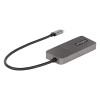
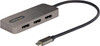
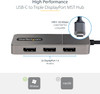
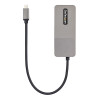
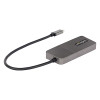
The StarTech.com MST14CD123DP USB-C to 3 × DisplayPort MST Hub is a compact multi-monitor adapter designed to connect up to three DisplayPort monitors to a compatible USB-C, Thunderbolt 3, Thunderbolt 4 or USB4 Windows device. It uses DisplayPort 1.4 Multi-Stream Transport / MST to extend or mirror your desktop across multiple displays, making it ideal for productivity workstations, trading desks, office users, designers, data analysis, remote working and multi-screen business setups.
This USB-C to triple DisplayPort adapter is ideal for customers searching for a StarTech MST14CD123DP, USB-C to 3 DisplayPort MST hub, triple monitor DisplayPort adapter, USB-C DisplayPort 1.4 splitter, triple 4K 60Hz Windows display adapter, or a USB-C multi-monitor hub for expanding a laptop or desktop workspace.
Key Features of the StarTech MST14CD123DP
- Connect up to three DisplayPort monitors from one compatible USB-C port
- Supports up to triple 4K 60Hz when used with a compatible DP 1.4 host with DSC and suitable monitors
- DisplayPort 1.4 MST technology for extended or mirrored multi-display setups
- USB-C host connection with DisplayPort Alternate Mode support required
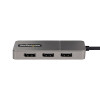
- 3 × DisplayPort 1.4 outputs for external monitors, projectors or displays
- Compatible with Windows devices that support MST over USB-C video output
- Thunderbolt 3, Thunderbolt 4 and USB4 compatible when DisplayPort video output is supported
- Supports HDR for compatible displays and systems
- Supports DisplayPort audio for compatible monitors
- USB bus-powered design with no separate power adapter required
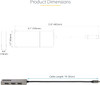
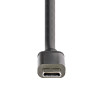
- Built-in 30cm USB-C cable for easier desk setup and reduced port strain
- Plug-and-play setup with no extra drivers or software required on compatible Windows systems
Triple DisplayPort Output for Productivity Workstations
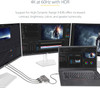
The StarTech USB-C to 3 × DisplayPort MST Hub is designed for users who need more screen space from a laptop, mini PC or desktop with USB-C video output. By connecting up to three DisplayPort monitors, it can help improve productivity for spreadsheets, stock control, customer service, coding, creative work, monitoring dashboards and multitasking.
Extend or Mirror Your Desktop
On compatible Windows systems, the MST hub can be used to extend your desktop across multiple independent displays or mirror the same image across connected screens. This gives flexibility for office work, presentations, digital signage, control rooms and multi-screen setups.
Triple 4K 60Hz Support with DisplayPort 1.4
The MST14CD123DP is designed for high-resolution display setups and can support up to three 4K monitors at 60Hz when connected to a compatible DisplayPort 1.4 over USB-C host device with the required bandwidth and display support. This makes it suitable for users who want sharp text, detailed images and smooth monitor performance across multiple displays.
Display Performance Depends on Your Device
Maximum resolution and refresh rate depend on your laptop or desktop, graphics processor, USB-C port capability, DisplayPort version, DSC support, connected monitors, DisplayPort cables and operating system settings. Some systems may support fewer displays or lower resolutions depending on their graphics and USB-C video output limitations.
USB-C, Thunderbolt and USB4 Compatibility
This adapter connects through a USB-C port that supports DisplayPort Alternate Mode. It can also work with compatible Thunderbolt 3, Thunderbolt 4 and USB4 systems when those ports support DisplayPort video output. A USB-C port used only for charging or data will not provide video output to this adapter.
DisplayPort Alt Mode Required
Before ordering, check that your laptop, desktop or mini PC supports DisplayPort Alt Mode over USB-C. Without USB-C video output support, the adapter will not display an image, even if the USB-C connector physically fits.
Windows MST Multi-Monitor Support
The StarTech MST14CD123DP is designed for Windows multi-monitor setups using Multi-Stream Transport. Windows systems with supported graphics hardware can use MST to split one DisplayPort video signal into multiple independent displays.
macOS Compatibility Notice
This product is not recommended for Mac users who need multiple independent extended displays from one USB-C connection. macOS does not support DisplayPort MST hubs for multiple extended displays in the same way Windows does. Mac systems may mirror displays or have limited behaviour depending on the model and operating system.
Plug-and-Play Multi-Monitor Adapter
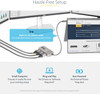
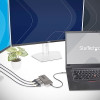
The adapter is designed for simple installation. Connect the built-in USB-C cable to a compatible host device, connect up to three DisplayPort monitors, and configure the display layout in Windows display settings. No separate software or driver installation is normally required on compatible Windows systems.
USB Bus-Powered Design
The MST hub is powered through the USB-C host connection, so it does not require an additional external power adapter. This helps keep desk setups cleaner and makes the adapter easier to carry between office, home and mobile workstations.
Who Is the StarTech MST14CD123DP Best For?
- Windows laptop users needing three external DisplayPort monitors
- Office workers building a multi-screen productivity setup
- IT departments standardising triple-monitor workstations
- Remote workers using a USB-C laptop with DisplayPort Alt Mode
- Designers, analysts, traders and developers needing more screen space
- Users with Thunderbolt 3, Thunderbolt 4 or USB4 Windows systems
- Business environments using DisplayPort monitors
StarTech MST14CD123DP Specifications
- Brand: StarTech.com
- Product ID: MST14CD123DP
- Product Type: USB-C to Triple DisplayPort MST Hub / Multi-Monitor Adapter
- Host Connector: USB-C with DisplayPort Alternate Mode
- Video Outputs: 3 × DisplayPort 1.4
- Display Technology: DisplayPort Multi-Stream Transport / MST
- Maximum Displays Supported: Up to 3 external displays
- Maximum Resolution: Up to triple 4K 60Hz, system dependent
- HDR Support: Yes, with compatible host and displays
- Audio Support: DisplayPort audio support, display dependent
- Power: USB bus-powered
- Built-In Cable: 30cm / 1ft USB-C cable
- Operating System: Windows systems with MST support
- Mac Compatibility: Not recommended for multiple extended displays on macOS
- Colour: Grey
- Adapter Type: Active adapter
- Typical Use: Triple-monitor workstation, office productivity, extended desktop, mirrored displays and digital signage
Buying Advice
Before ordering, please check that your computer supports USB-C DisplayPort Alt Mode and DisplayPort MST. For triple 4K 60Hz output, the host device must provide enough DisplayPort 1.4 bandwidth and support the required display configuration. You will also need compatible DisplayPort monitors and suitable DisplayPort cables.
Why Buy the StarTech USB-C to 3 × DisplayPort MST Hub?
The StarTech.com MST14CD123DP USB-C to Triple DisplayPort 1.4 MST Hub is a practical choice for Windows users who need a reliable multi-monitor adapter without a large docking station. With three DisplayPort outputs, triple 4K 60Hz capability on compatible systems, USB bus power, plug-and-play setup, HDR support and a built-in 30cm USB-C cable, it is a strong solution for business, productivity and professional multi-screen workstations.
Specification
StarTech USB-C to 3 × DisplayPort MST Hub Specifications
| Product Type | USB-C to Triple DisplayPort MST Hub / Multi-Monitor Adapter |
| Brand | StarTech.com |
| Product ID / MPN | MST14CD123DP |
| EAN / UPC | 0065030884389 |
| Host Connection | USB-C with DisplayPort Alternate Mode |
| Compatible Host Ports | USB-C DP Alt Mode, Thunderbolt 3, Thunderbolt 4 and USB4 with DisplayPort Video Output |
| Video Outputs | 3 × DisplayPort |
| DisplayPort Version | DisplayPort 1.4 |
| Display Technology | Multi-Stream Transport / MST |
| Maximum Displays Supported | Up to 3 External Displays |
| Maximum Resolution | Up to 3 × 4K at 60Hz, host and display dependent |
| Triple 4K 60Hz Requirement | Requires a compatible DisplayPort 1.4 host with DSC and enough graphics bandwidth |
| Display Modes | Extended Desktop or Mirrored / Duplicated Displays on Compatible Windows Systems |
| HDR Support | Yes, with Compatible Host, Cables and Displays |
| Audio Support | DisplayPort Audio Support, Display Dependent |
| Power Source | USB Bus Powered |
| External Power Adapter Required | No |
| Built-In Host Cable | 30cm / 1ft USB-C Cable |
| Driver Requirement | Plug and Play / No Drivers or Software Required on Compatible Systems |
| Operating System Support | Windows Systems with MST Support |
| macOS Support | Not Recommended for Multiple Independent Extended Displays on macOS |
| Adapter Type | Active MST Adapter |
| Colour | Grey |
| Typical Use | Triple-Monitor Workstations, Office Productivity, Extended Desktop, Mirrored Displays and Digital Signage |
USB-C Compatibility Notice
This adapter requires a USB-C port with DisplayPort Alternate Mode. A USB-C port used only for charging or data will not output video to this MST hub.
Triple 4K 60Hz Notice
Triple 4K 60Hz output requires a compatible DisplayPort 1.4 host with DSC, enough graphics bandwidth, suitable DisplayPort monitors and compatible DisplayPort cables. Systems without DP 1.4 / DSC may support fewer displays or lower resolutions.
Windows MST Notice
This is a DisplayPort MST hub for compatible Windows systems. It is not a DisplayLink dock and does not use USB graphics drivers.
macOS Notice
macOS does not support multiple independent extended displays through DisplayPort MST hubs in the same way Windows does. Mac systems may mirror displays or have limited multi-monitor behaviour depending on the model and operating system.
Return
FAQ: Frequenlty Asked Questions
StarTech USB-C to 3x DisplayPort MST Hub Triple 4K 60Hz FAQ
The StarTech USB-C to 3x DisplayPort MST Hub Triple 4K 60Hz is a professional USB-C multi-monitor adapter designed to connect up to three DisplayPort monitors from one compatible USB-C laptop or desktop. It is ideal for Windows workstations, office desks, trading setups, productivity users, content creators and business users who need multiple extended displays without using a full docking station. Below are the most common questions buyers ask before choosing this StarTech USB-C to Triple DisplayPort MST hub, including USB-C compatibility, DP Alt Mode, MST support, triple 4K 60Hz, Windows and Mac compatibility, DisplayPort 1.4, DSC, laptop requirements, monitor setup and troubleshooting.
1. What is the StarTech USB-C to 3x DisplayPort MST Hub?
The StarTech USB-C to 3x DisplayPort MST Hub is a multi-monitor video adapter that connects one compatible USB-C port on a laptop or desktop to up to three DisplayPort monitors. It uses DisplayPort Multi-Stream Transport technology to extend your desktop across multiple screens on supported systems.
2. What is this StarTech USB-C MST hub best used for?
This StarTech MST hub is best used for triple-monitor workstations, office productivity, spreadsheets, coding, finance desks, trading setups, design work, monitoring dashboards, remote working and users who want more screen space from one USB-C video-capable port.
3. Does this adapter support three DisplayPort monitors?
Yes. This StarTech adapter is designed to connect up to three DisplayPort monitors from one compatible USB-C host device, provided the laptop or desktop supports the required USB-C video output, MST, bandwidth and operating system features.
4. Does this StarTech hub support triple 4K 60Hz?
Yes, the DP 1.4 version is designed for up to three 4K monitors at 60Hz when the host system supports DisplayPort 1.4, DSC and enough video bandwidth. If the laptop only supports older DisplayPort output, the maximum resolution or refresh rate may be lower.
5. What does MST mean?
MST stands for Multi-Stream Transport. It is a DisplayPort technology that allows one video output to carry multiple independent display signals, making it possible to extend the desktop across more than one monitor using a compatible MST hub.
6. Does this hub duplicate or extend displays?
On compatible Windows systems, this MST hub can extend the desktop across multiple monitors or duplicate displays, depending on your display settings. Extended mode is normally the reason buyers choose an MST hub.
7. Can I show different content on each monitor?
Yes, on supported Windows systems you can use the monitors as separate extended displays, allowing different windows, apps and documents on each screen.
8. Does this adapter work with Windows laptops?
Yes. This type of StarTech MST hub is mainly designed for Windows laptops and desktops that support USB-C DisplayPort Alternate Mode and MST. For best results, install the latest graphics drivers and Windows updates.
9. Does this adapter work with Windows 11?
Yes. It can work with Windows 11 if the USB-C port supports DisplayPort Alt Mode and the graphics hardware supports MST and the required bandwidth. Check your laptop or motherboard specifications before buying.
10. Does this adapter work with Windows 10?
Yes. It can work with Windows 10 on compatible USB-C systems. Make sure your graphics drivers are up to date and that your USB-C port supports video output, not only charging or data.
11. Does this StarTech MST hub work with MacBook?
It is not recommended for MacBook users who want multiple extended displays through MST. macOS generally does not support multiple independent extended displays through standard DisplayPort MST hubs, so the monitors may mirror instead of extend.
12. Why does macOS mirror displays with MST hubs?
macOS does not support MST extended desktop in the same way as Windows. With many MST hubs, Mac systems may mirror the same image across displays rather than showing separate independent desktops.
13. Is this adapter suitable for Apple Mac users?
This adapter is best for Windows systems. Mac users who need multiple extended displays should normally look at Thunderbolt docks or DisplayLink-based adapters, depending on the Mac model and required monitor setup.
14. Does this work with USB-C ports on all laptops?
No. The USB-C port must support video output using DisplayPort Alternate Mode. Some USB-C ports support only charging or data, so they will not work with this display adapter.
15. What is DisplayPort Alt Mode?
DisplayPort Alt Mode is a USB-C feature that allows a USB-C port to output DisplayPort video. Without DP Alt Mode, a USB-C to DisplayPort MST hub cannot send video to external monitors.
16. How do I know if my laptop supports DP Alt Mode?
Check your laptop manual, manufacturer specification page or USB-C port markings. Ports with DisplayPort, Thunderbolt or USB4 support often support video output, but not every USB-C port does.
17. Does this hub work with Thunderbolt 3 or Thunderbolt 4 ports?
It can work with many Thunderbolt 3 and Thunderbolt 4 ports because those ports usually support DisplayPort video output. However, multi-monitor support still depends on the laptop, operating system, graphics hardware and MST support.
18. Does this hub work with USB4 ports?
It may work with USB4 ports that support DisplayPort Alt Mode and MST. Check the laptop specification because USB4 features can vary by device, graphics platform and manufacturer implementation.
19. Is this a docking station?
No. This is a video MST hub, not a full docking station. It is designed for connecting DisplayPort monitors only and does not add USB-A ports, Ethernet, audio, SD card readers or laptop charging like a full dock.
20. Does this adapter charge my laptop?
No. This MST hub does not provide USB-C Power Delivery charging to the laptop. You will still need to connect your laptop charger separately unless your setup includes another charging dock or power source.
21. Does this adapter need an external power supply?
Most StarTech USB-C MST hubs of this type are USB bus-powered, meaning they draw power from the host USB-C port. No separate power brick is normally required, but the host port must supply enough power for the adapter to operate correctly.
22. What DisplayPort version do I need for triple 4K 60Hz?
For triple 4K 60Hz, the host system normally needs DisplayPort 1.4 support with DSC. Older DisplayPort 1.2 systems may still work, but at lower resolution, fewer monitors or lower refresh rates.
23. What is DSC?
DSC stands for Display Stream Compression. It is a visually lossless compression technology used by DisplayPort 1.4 to carry high-resolution, high-refresh-rate video such as multiple 4K 60Hz displays over limited bandwidth.
24. Do my monitors need DisplayPort?
Yes. This version has DisplayPort outputs, so your monitors should have DisplayPort inputs. If your monitors only have HDMI, you may need a different HDMI version of the hub or suitable active adapters.
25. Can I use DisplayPort to HDMI adapters with this hub?
It may work with active DisplayPort to HDMI adapters, but compatibility is not guaranteed for every resolution and refresh rate. For the most reliable setup, use DisplayPort monitors and good-quality DisplayPort cables.
26. Can I connect only one or two monitors?
Yes. You can use one, two or three DisplayPort monitors. The hub does not require all three outputs to be used at the same time.
27. Can I use monitors with different resolutions?
Yes, mixed monitor resolutions can usually be used on Windows. Maximum settings will depend on total bandwidth, graphics hardware, DisplayPort version, monitor capabilities and display settings.
28. Can I use monitors with different refresh rates?
Yes, but the supported refresh rates depend on the total bandwidth and your laptop’s graphics output. Very high refresh rates may require lowering the resolution or using fewer monitors.
29. Can this run 144Hz gaming monitors?
It may support high refresh rates in some lower-resolution or reduced-monitor setups, but it is mainly sold for productivity and triple 4K 60Hz style configurations. For gaming at very high refresh rates, connect monitors directly to a dedicated GPU where possible.
30. Is this good for gaming?
This hub is better for productivity and multi-monitor work than gaming. It can display games, but competitive gaming users usually get the best performance by connecting the monitor directly to the graphics card or laptop display output.
31. Is this good for office work?
Yes. This adapter is ideal for office work because it allows multiple screens for spreadsheets, emails, browser tabs, video meetings, dashboards and productivity applications from one compatible USB-C port.
32. Is this good for trading or finance desks?
Yes. Triple-monitor output is useful for finance, trading, analysis and dashboard setups where users need several windows visible at the same time.
33. Is this useful for programming?
Yes. Developers can use multiple monitors for code editors, documentation, terminals, browsers, logs and testing environments, improving workflow and reducing window switching.
34. Does this adapter support audio over DisplayPort?
DisplayPort can carry audio if the monitor and system support it. Audio behaviour depends on the monitor, Windows sound settings, graphics driver and connected display.
35. Does this adapter require drivers?
MST hubs normally use the graphics system’s native DisplayPort MST support and do not require DisplayLink-style software. However, you should keep your graphics drivers, chipset drivers and Windows updates current.
36. Is this a DisplayLink adapter?
No. This is an MST adapter, not a DisplayLink adapter. MST uses native DisplayPort video output from the computer, while DisplayLink uses USB graphics compression and software drivers.
37. What is the difference between MST and DisplayLink?
MST uses the laptop’s native DisplayPort video signal and usually works best on Windows systems with DP Alt Mode. DisplayLink uses USB data and software drivers, and is often used when a system does not support enough native display outputs, including some Mac setups.
38. Why are my monitors only mirroring?
If monitors are mirroring, check that your operating system supports MST extended mode, your laptop supports DP Alt Mode, your graphics driver is updated and Windows display settings are set to extend rather than duplicate. On macOS, MST hubs commonly mirror instead of extending.
39. Why is one monitor not detected?
One monitor may not be detected because of bandwidth limits, a poor cable, unsupported resolution, outdated graphics drivers, a monitor input setting, or a laptop USB-C port that does not support enough display outputs. Try lowering resolution, testing each monitor separately and updating drivers.
40. Why can I not get 4K 60Hz on all monitors?
Triple 4K 60Hz requires the right host hardware, DisplayPort 1.4, DSC support, compatible monitors and good cables. If any part of the chain only supports lower bandwidth, you may need to reduce resolution, refresh rate or number of displays.
41. Can an Intel integrated graphics laptop use this hub?
Many Intel-based Windows laptops can use MST hubs if the USB-C port supports DisplayPort Alt Mode and the graphics hardware supports the required number of displays. Check the laptop’s display output limits before buying.
42. Can an AMD laptop use this hub?
Yes, many AMD Windows laptops can use it if the USB-C port supports DP Alt Mode and the graphics system supports MST and the required display bandwidth.
43. Can a desktop PC use this hub?
Yes, if the desktop has a USB-C port with DisplayPort Alt Mode from a compatible motherboard, graphics card or Thunderbolt/USB4 add-in card. A standard USB-C data-only port will not work for video.
44. Can I use this with a USB-A port?
No. USB-A does not carry DisplayPort Alt Mode video. This adapter requires a compatible USB-C, Thunderbolt or USB4 port with video output support.
45. What cables should I use?
Use good-quality DisplayPort cables rated for the resolution and refresh rate you want. For triple 4K 60Hz, cable quality matters, especially when using longer cable runs or high-resolution monitors.
46. Can I close my laptop lid and use three monitors?
Yes, on many Windows laptops you can close the lid and use external monitors if power settings are configured correctly. You may need to change Windows “lid close” settings and connect the laptop charger.
47. Is this adapter portable?
Yes. It is much smaller than a full docking station and is useful for hot-desking, business travel, office setups and users who only need video outputs rather than a complete dock.
48. What should I check before buying this StarTech USB-C to 3x DisplayPort MST Hub?
Check that your laptop supports USB-C DisplayPort Alt Mode, MST, Windows extended displays, DisplayPort 1.4 and DSC if you need triple 4K 60Hz. Also check your monitor inputs, cable quality, graphics driver support and whether you need charging or extra ports from a full dock instead.
49. Who should NOT buy this StarTech MST hub?
This hub is not ideal for users with data-only USB-C ports, Mac users who need multiple extended MST displays, users needing laptop charging, users wanting Ethernet or USB ports, or gamers needing very high refresh rates. It is best for Windows users who need multiple DisplayPort monitors from one compatible USB-C video port.
50. Why buy the StarTech USB-C to 3x DisplayPort MST Hub from Memox?
Buying the StarTech USB-C to 3x DisplayPort MST Hub from Memox is a practical choice if you need a reliable triple-monitor DisplayPort adapter for a compatible Windows USB-C laptop or workstation. Memox offers StarTech adapters, USB-C accessories, networking products, cables, PC components, storage, memory and computer accessories for UK customers.
Videos
View AllClose
Related Products
Related Products
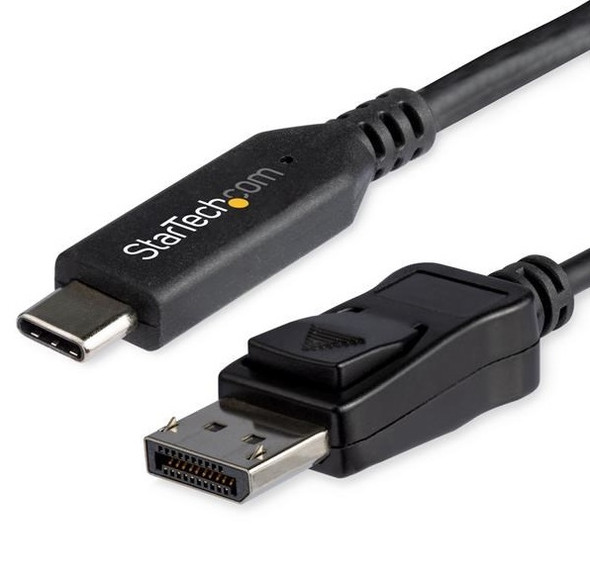
StarTech USB-C to DisplayPort 1.4 Cable 1.8m 8K 60Hz HBR3 HDR DSC
STARTECH
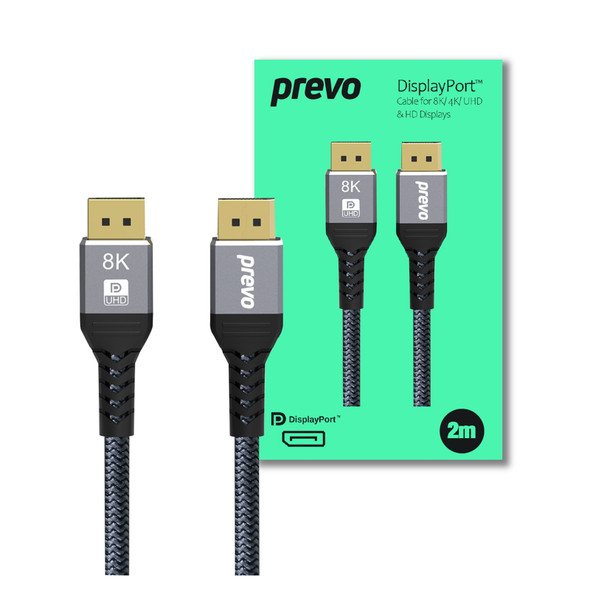
Prevo DisplayPort 1.4 Cable 2m 8K 60Hz, 4K 144Hz, Braided DP Cable
PREVO